
Real-Time Collaboration
Write together in real time with co-writers, editors, and collaborators.
Overview
OpenDraft supports real-time collaboration — multiple people can edit the same screenplay simultaneously, with changes syncing instantly. You can see each collaborator's cursor position and edits as they happen.
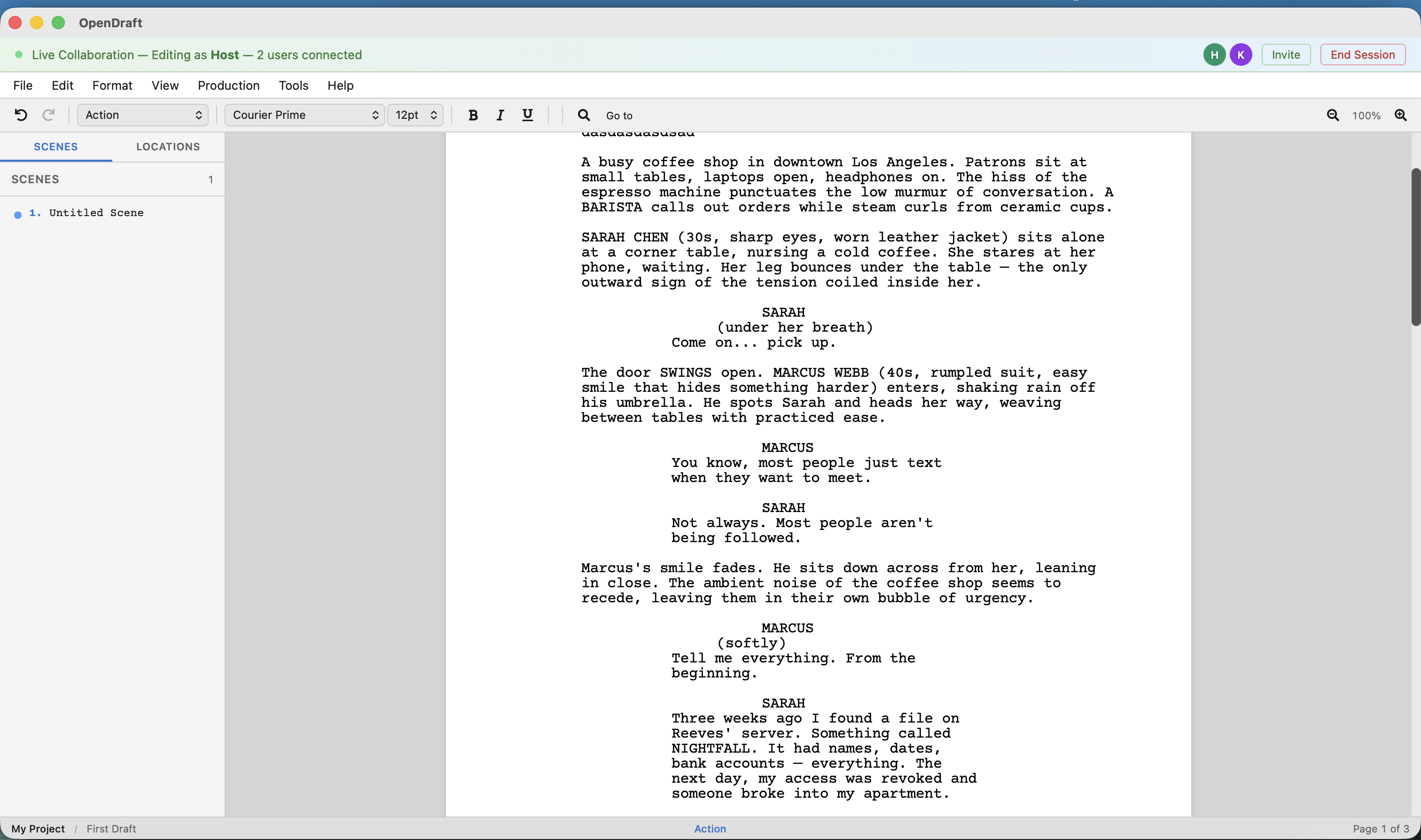
Collaboration syncs everything in real time: screenplay text, character profiles, script notes, tags, beats, and scene synopses.
Setting Up Collaboration
Before you can collaborate, you need to configure a collaboration server and create an account.
Configure the Collaboration Server
- Open System Settings (from the app menu or gear icon).
- Find the Collaboration Server section.
- Enter the server URL. Use
wss://for encrypted connections (recommended) orws://for local networks. - Click Test Connection to verify the server is reachable.
Default server: OpenDraft includes a demo collaboration server URL out of the box. For production use, you can deploy your own collaboration server for full control and privacy.
Create an Account
- In System Settings, find the Collaboration Account section.
- Click Register to create a new account with your email and password.
- If email verification is enabled on the server, enter the 6-digit code sent to your email.
- Alternatively, use Sign in with Google if the server supports it.
Starting a Collaboration Session
As the host, you invite others to your screenplay by creating invite links.
- Open the screenplay you want to share.
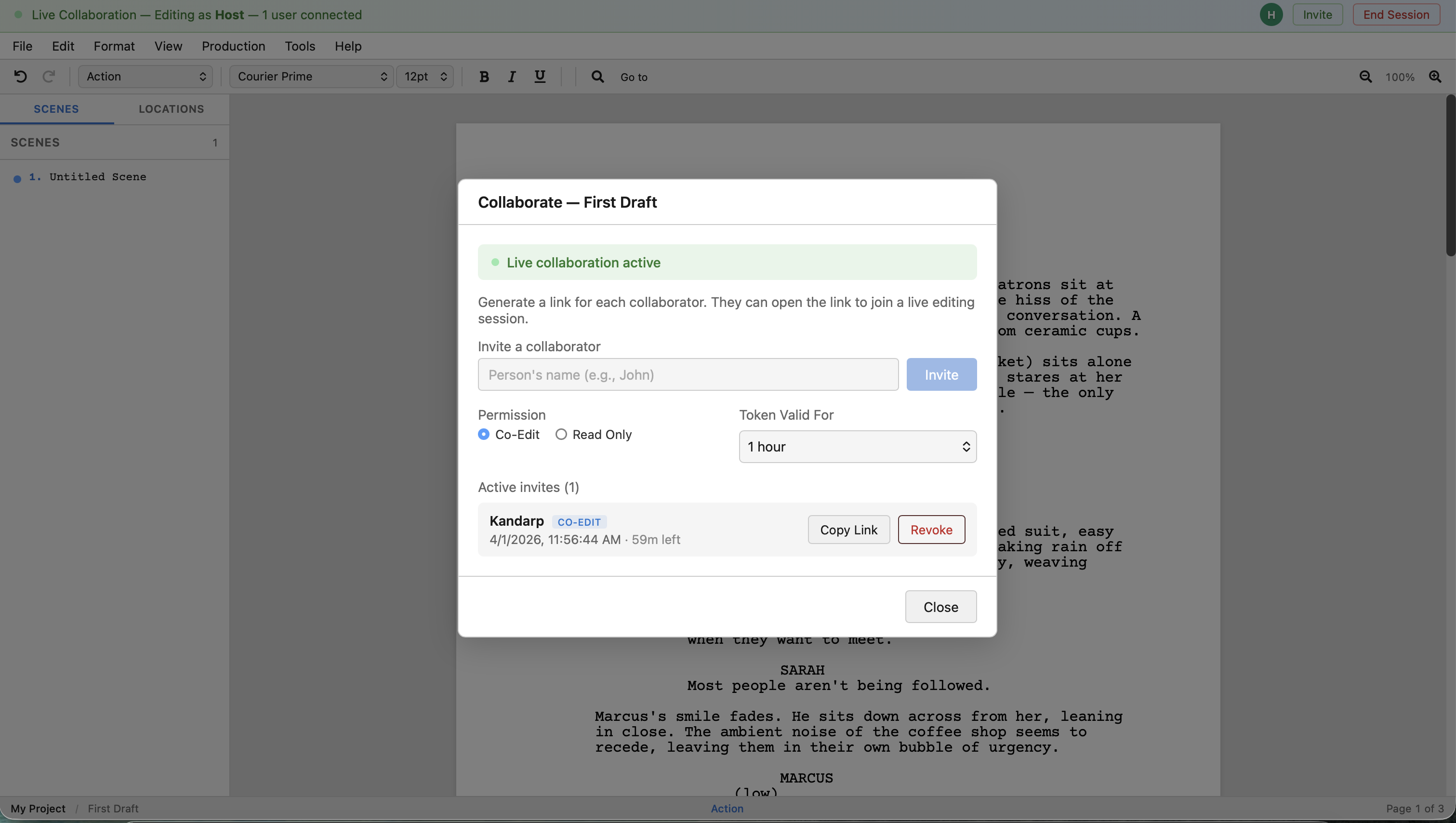
- Go to Tools > Collaborate... to open the Share dialog.
- Enter the collaborator's name (for your reference).
- Choose a permission level:
- Co-Edit — Full read-write access. The collaborator can modify the screenplay.
- Read Only — View-only access. The collaborator can see the screenplay and follow edits in real time but cannot make changes.
- Set the Token Valid For duration (how long the invite link stays active). Options range from 30 minutes to 30 days.
- Click Invite to generate the link.
- Click Copy Link to copy the invite URL and share it with your collaborator.
Joining a Collaboration Session
- Go to Tools > Join Collaboration...
- Paste the invite link or token you received.
- Click Join.
- The shared screenplay opens in your editor with the permissions assigned by the host.
During a Collaboration Session
While collaborating, a green Live Collaboration bar appears at the top of the editor showing the session status and connected users.
- Colored cursors — Each collaborator has a unique color. Their cursor position and name tag are visible in real time.
- Instant sync — All changes (text edits, formatting, metadata) sync automatically.
- No conflicts — OpenDraft uses CRDT technology (Yjs) to merge concurrent edits without conflicts.
Following the Host
When the host opens another script during a session, every guest is taken to it, with the same permissions. Guests do not need to be signed in for this: the invite they joined with is enough. A guest who joined through an invite link stays on the collaboration server named in that link, whatever server their own Settings point to.
If a guest cannot follow, they stay on the previous script and are told why. An invite the server no longer accepts means asking the host for a new link; a server that cannot be reached means trying again once the connection is back.
What Gets Synced
Everything syncs in real time between all connected collaborators:
- Screenplay text and formatting
- Character profiles
- Script notes and general notes
- Tags and tag categories
- Beats and beat board structure
- Scene synopses
Managing Invites
The Share dialog (Tools > Collaborate...) shows all active invites for the current screenplay.
For each invite, you can see:
- The collaborator's name and role (Co-Edit or Read Only)
- When the invite was created and when it expires
You can:
- Copy Link — Re-copy the invite URL
- Revoke — Cancel a specific invite, disconnecting that collaborator
Ending a Session
To end a collaboration session:
- As host: Click End Session in the collaboration bar, or revoke all invites from the Share dialog. All collaborators are disconnected — from every script the session used, not just the one open — and are told that the session has ended.
- As guest: Close the editor tab or navigate away. Your connection ends but the session continues for others.
Invite Defaults
In System Settings > Invite Defaults, you can set the default token expiry time for new invites. This saves you from changing it every time you create an invite. The default is 1 hour.
Tip: For quick review sessions, use a short expiry (30 minutes to 1 hour). For ongoing writing partnerships, use longer durations (7 or 30 days).
Security: Anyone with an active invite link can join your session with the assigned permissions. Share links only with people you trust, and revoke invites when they are no longer needed.