
Getting Started
Write your first screenplay in 5 minutes. This guide walks you through the basics.
The Interface at a Glance
When you open a screenplay in OpenDraft, you'll see these main areas:
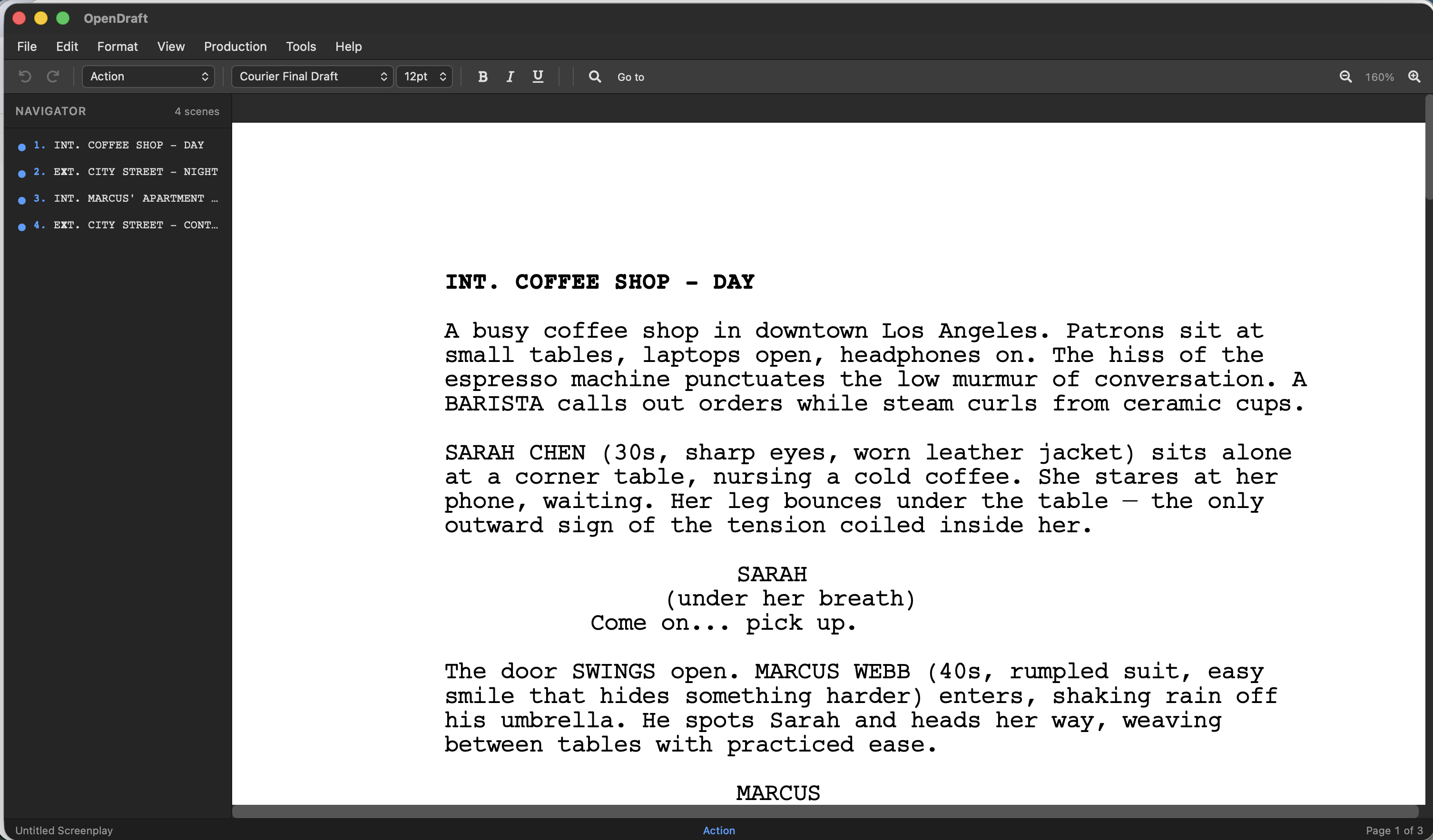
- Menu Bar (top) — Access all features via File, Edit, Format, View, Tools, and Help menus.
- Toolbar (below menu) — Quick buttons for formatting, element type, font, zoom, and search.
- Editor (center) — The main writing area where your screenplay lives. It looks and behaves like a page of paper.
- Side Panels (left/right) — Optional panels for Scene Navigator, Index Cards, Characters, Tags, and more. Toggle them from the View menu.
- Status Bar (bottom) — Shows your current page count and zoom level.
Step 1: Create a Project
Everything in OpenDraft lives inside a project. A project holds one or more screenplays, assets, and version history.
- When you first open OpenDraft, you'll see the Projects screen. Click the + New Project button.
- Give your project a name (e.g., "My First Screenplay") and press Create.
- Your new project opens. You'll see tabs for Scripts, Assets, and Versions.
You can add metadata to your project later — genre, logline, synopsis, author, and more — via the project properties dialog.
Step 2: Create a Script
- Inside your project, click + New Script in the Scripts tab.
- Give your script a name and press Create.
- Click on the script to open it in the editor.
Step 3: Write Your First Scene
Screenplays are built from elements — scene headings, action, character names, dialogue, and more. OpenDraft formats them automatically.
-
Start with a Scene Heading. The editor begins in Scene Heading mode. Type your location:
INT. COFFEE SHOP - DAY
Press Enter to move to the next line. The element type automatically switches to Action. -
Write some action. Describe what we see:
A busy coffee shop. SARAH (30s, sharp eyes, messy bun) waits in line, fidgeting with her phone.
Press Enter twice to move on. -
Add a character and dialogue. Press ⌘3 to switch to Character mode, then type the name:
SARAH
Press Enter — it automatically switches to Dialogue mode. Type what they say:Come on, come on... I'm going to be late.
-
Add a parenthetical. Press ⌘5 for a Parenthetical:
(checking her watch)
Press Enter to return to dialogue.
Shortcut tip: Use ⌘1 through ⌘8 to quickly switch between element types. Or use the element dropdown in the toolbar. See the full list in Writing Your Screenplay.
Step 4: Save Your Work
OpenDraft offers two ways to save:
- Quick Save (⌘S) — Saves your current work instantly.
- Check In (File > Versions > Check In) — Creates a named version checkpoint. You can view, compare, and restore any checked-in version later. Think of it like a "save point" in a video game.
Check in early and often! Every time you finish a scene or make significant progress, use Check In to save a version you can always return to.
Neither of those is the same as a backup. Turn backups on and OpenDraft writes timestamped copies of your script into a folder you choose — on your computer, or in Files on a phone or tablet — while you write.
Working In More Than One Window
File > New Window opens a second OpenDraft window, so you can keep an outline or an earlier draft in view while you write. It is available on the desktop, on iPad, and on Android 12L and later — where the menu item is missing, the device cannot show two windows of one app.
- iPad — the new window opens as a second scene; drag the window controls at the top to put the two side by side.
- Android — each window is its own entry in Recents. To see both at once, open Recents, tap the OpenDraft icon above a window, choose Split screen, then pick the other OpenDraft window.
- Desktop — an ordinary second window you can move and resize.
If you open a screenplay that is already open in another window, OpenDraft offers to switch to that window rather than open a second copy — two windows editing one script would save over each other.
Step 5: Explore the Panels
Open side panels from the View menu to access powerful tools:
| Panel | What it does | Best for |
|---|---|---|
| Navigator | Lists all scenes; click to jump | Quick navigation in long scripts |
| Index Cards | Visual cards for each scene | Rearranging scenes, adding synopses |
| Beat Board | Story beats organized by act | High-level story planning |
| Characters | Rich profiles with images, backstories, roles, and stats | Building your cast, tracking who appears where |
| Script Notes | Color-coded annotations | Reminders, feedback, research |
| Tags | Production tagging (props, costumes...) | Pre-production breakdowns |
Next Steps
You now know the basics! Here's where to go next:
- Writing Your Screenplay — Deep dive into all screenplay elements and the editor
- Formatting — Bold, italic, fonts, and page formatting
- Characters — Build character profiles and track dialogue
- Keyboard Shortcuts — Speed up your workflow