
Managing Projects
Organize your screenplays, scripts, and assets.
The Projects Screen
When you open OpenDraft, you land on the Projects screen. This is your home base for all your work.
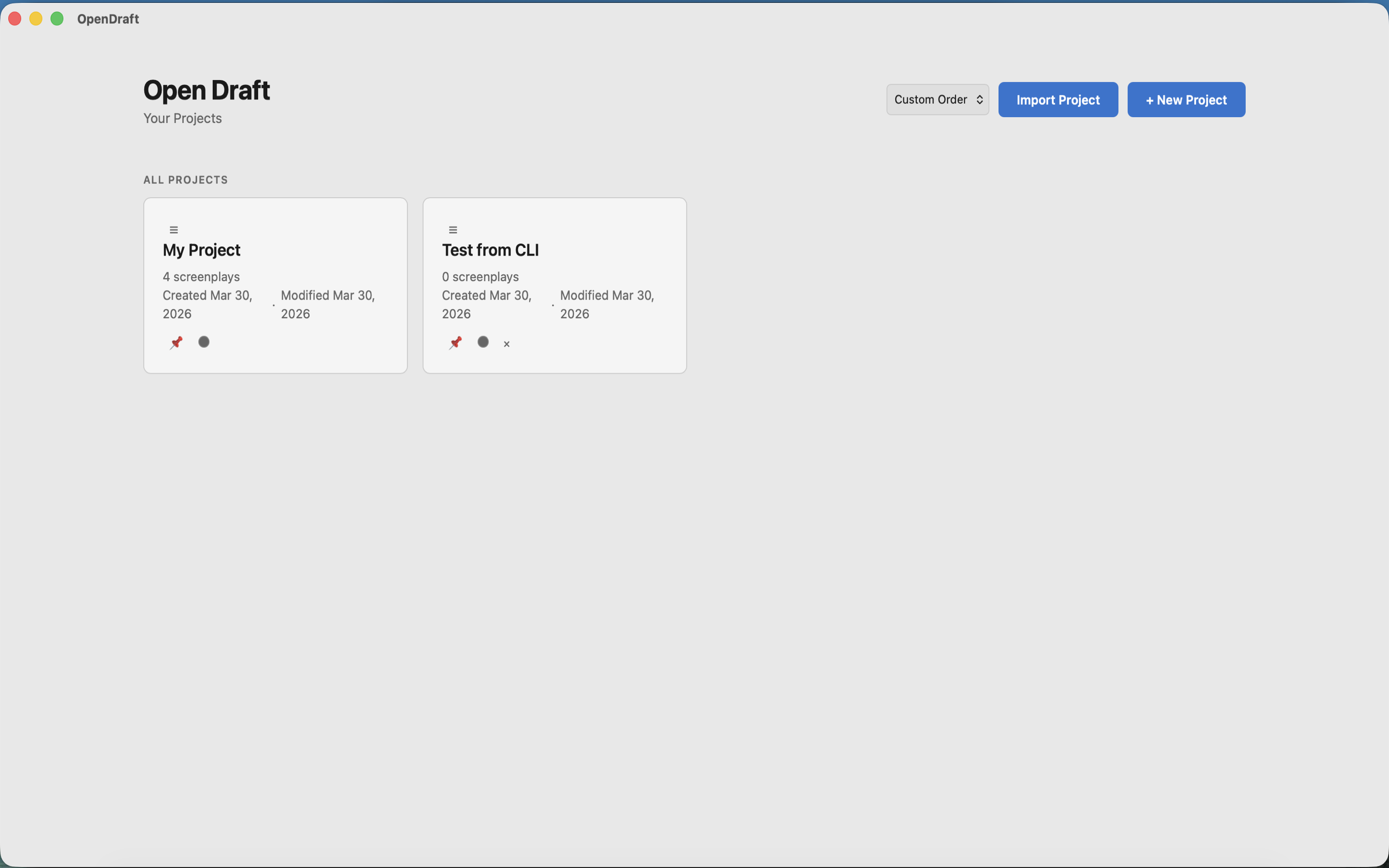
The projects list shows each project with its title, creation date, modification date, and status. You can sort projects by:
- Custom order — Drag and drop to arrange however you like
- Title — Alphabetical
- Created date — Newest or oldest first
- Modified date — Most recently edited first
Creating a Project
- Click the + New Project button on the Projects screen.
- Enter a project name.
- On the desktop app, choose where its scripts are saved — the library or a folder on disk (see Saving a Project in a Folder).
- Click Create.
Saving a Project in a Folder
On the desktop app (macOS, Windows and Linux), a project can keep its scripts as ordinary files in a folder you choose — on an external disk, a RAID or a network drive — so the newest copy of every script is already where you keep your work, with no extra backup step. OpenDraft’s library still holds the working copy, with its versions, notes and assets; every save also writes the file.
- New Project asks where to save: The OpenDraft library, or A folder on disk, with the file format to use. A folder project shows a Folder badge.
- File > Open Folder as Project… turns a folder you already have into a project. Its scripts are added, and its files are not changed. A folder called
scripts,draftsor similar is named after the folder it sits in, soMyFilm/scriptsbecomes “MyFilm”. - Inside a project, Storage moves it to a folder (Save to a Folder…), Move to Another Folder…, Show in Folder, Check for New Files added outside OpenDraft, or Save in Library Only….
- Any single script can be saved to a file from its menu: Save to File…, Show File, Stop Saving to File. File > Save to File As… does the same from the editor.
Scripts are saved as OpenDraft (.odraft, which keeps everything), Fountain or Final Draft (.fdx). Renaming a script renames its file. Deleting one asks whether to delete the file too; the answer is no unless you say so.
When a File Is Changed Outside OpenDraft
OpenDraft notices when a script’s file has been changed by another program or another computer, and never writes over it. If you have no unsaved changes, it simply opens the changed version. If you do, it asks:
- Use the File’s Version — opens the file. What OpenDraft had is kept in Version History first.
- Keep OpenDraft’s Version — saves your version to the file, and keeps the other one beside it as Name (changed outside OpenDraft …).
Opening a script without changing it leaves its file exactly as it was.
If the Drive Is Not Connected
Your work is still saved to the library. The status bar says the file is not saved yet, and OpenDraft writes it as soon as the folder can be reached again.
The default folder for new projects, and the file format, are set in Tools > System Settings > Saving. Folders are a desktop feature: the iPhone, iPad, Android and browser versions keep projects in the library.
Project Properties
Each project can store rich metadata. Open the properties dialog to edit:
| Field | Description |
|---|---|
| Title | The project name |
| Genre | Comedy, Drama, Thriller, etc. |
| Logline | A one-sentence summary of the story |
| Synopsis | A longer summary of the story |
| Author | The screenwriter's name |
| Contact | Contact information |
| Copyright | Copyright notice |
| Draft | Current draft number (e.g., "Third Draft") |
| Language | Primary language of the screenplay |
| Format | Feature, TV Pilot, Short, etc. |
| Production Company | Producing company name |
| Director | Attached director |
| Producer | Attached producer |
| Status | Development, Pre-production, etc. |
| Target Length | Target page count |
| Notes | Internal notes about the project |
Registration & Legal
Click the Registration & Legal section header in Project Properties to expand additional fields for rights management and submission tracking:
| Field | Description |
|---|---|
| WGA Registration # | Writers Guild of America registration number (e.g., “WGAw #123456”) |
| WGA Registration Date | Date the script was registered with the WGA |
| Copyright Registration # | U.S. Copyright Office registration number (e.g., “PAu 1-234-567”) |
| Copyright Year | Year of copyright (e.g., “2026”) |
| Agent | Agent name and agency |
| Agent Contact | Agent email, phone number |
| Manager | Manager name and company |
| Manager Contact | Manager email, phone number |
Submission Log
Below the registration fields is a Submission Log table where you can track where you've sent the script:
- Date — When the script was submitted
- Submitted To — Company or person (e.g., “Netflix”, “A24”)
- Type — Submission type (e.g., Query, General Meeting, Submission)
- Status — Current status (e.g., Pending, Read Request, Passed, Considering)
- Notes — Any notes about the submission
Click + Add Submission to add a new row. Click the × button to remove an entry. All data is saved with the project automatically.
Note: This is a lightweight tracking tool for personal use. For complex submission pipelines, you may want to use a dedicated service alongside OpenDraft.
Organizing Projects
Color Coding
Assign a color to each project for visual organization. This is useful when you have many projects and want to quickly identify them.
Pinning
Pin important projects to keep them at the top of the list, regardless of sort order. Click the pin icon on a project to toggle.
Drag and Drop
When sorted by "Custom order", you can drag projects to rearrange them in any order you prefer.
Inside a Project
Opening a project shows three tabs:
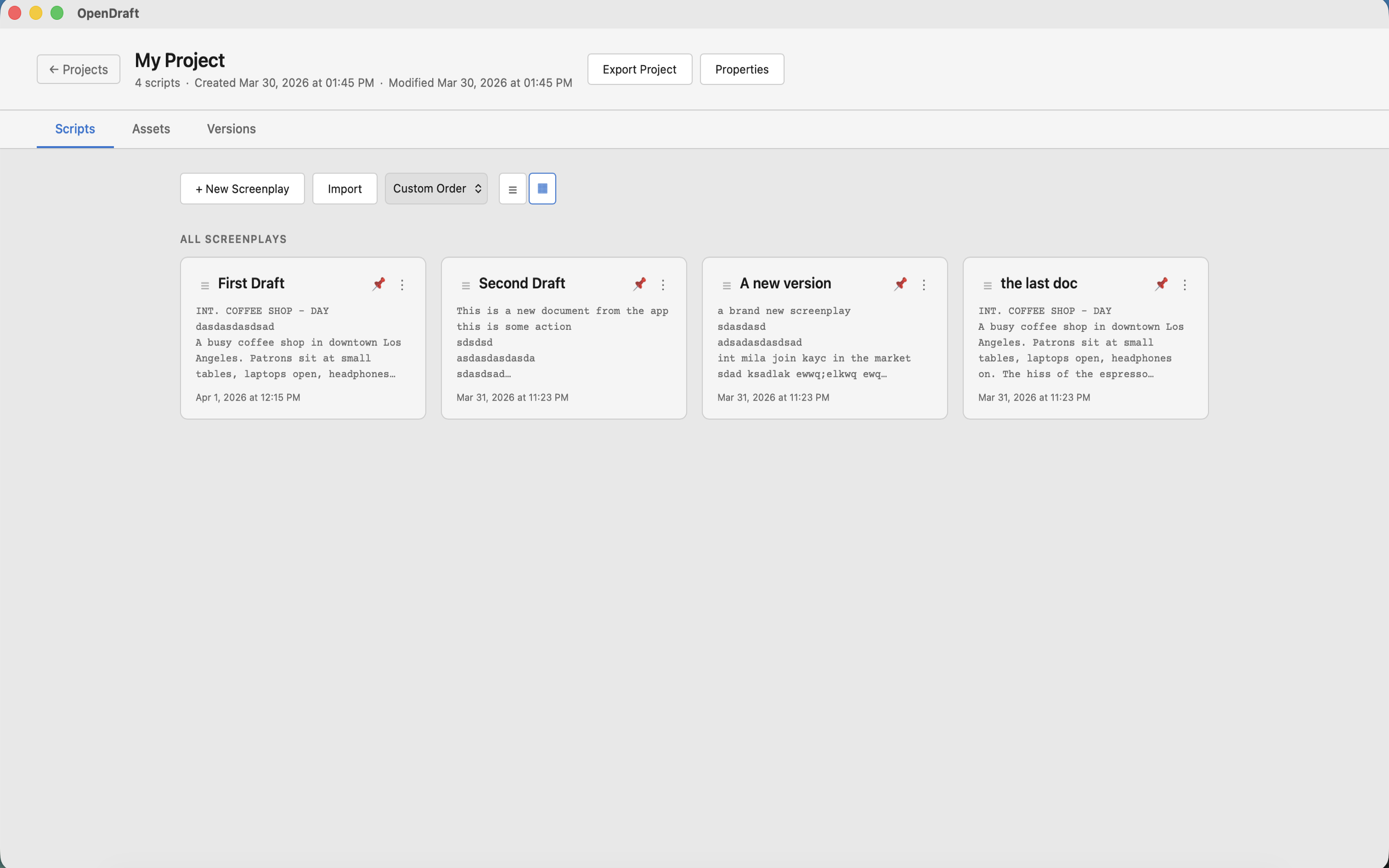
Scripts Tab
Manage the screenplay files in this project:
- Create new scripts — Click + New Script
- Open a script — Click on it to open in the editor
- Sort scripts — By title, created date, modified date, size, page count, or custom drag-and-drop order
- Pin scripts — Keep important scripts at the top
- Color-code scripts — Assign colors for visual identification
- Delete scripts — Remove scripts you no longer need
Assets Tab
Attach reference materials to your project:
- Upload files — Drag and drop images, documents, videos, and other files
- Tag assets — Organize assets with tags
- Preview — View images and videos inline
- Download — Save assets to your computer
- Filter — Search assets by name or tag
Tip: Store character reference photos, location scouting images, mood boards, and research documents as project assets. Reference them in Script Notes using the @AssetName syntax.
Versions Tab
View the version history for the entire project. See Version History for details.
Exporting and Importing a Project
Export Project, inside a project, saves the whole project as a single .zip file. Import Project, on the Projects screen, opens one as a new project. Use them to move a project to another device or to keep a copy outside the app.
- The archive carries every script, including its notes, tags, beats and character profiles, along with each script's color, pin and order, and the project's properties.
- Images in your scripts travel with them when you export from the desktop or mobile app. A project exported from the web version arrives without its images, and the import tells you so.
- Importing never changes an existing project: it always creates a new one. If any script cannot be imported, the message names it.
- Version history is not included in the archive.
Deleting a Project
Hover over a project in the Projects list and click the delete button. You will be asked to confirm.
Warning: Deleting a project removes all its scripts, assets, and version history from OpenDraft. This cannot be undone. For a project saved in a folder, the files in the folder are left where they are.