Version History
Check in drafts, compare versions, and restore previous work.
What Is Version History?
OpenDraft has built-in version control (powered by Git under the hood). Every time you check in your script, a snapshot is saved. You can view, compare, and restore any of these snapshots at any time.
Think of it as a time machine for your screenplay — you can always go back to any point.
Checking In
- Go to File > Versions > Check In (or use the keyboard shortcut).
- Enter a brief message describing what you changed (e.g., "Finished scene 5 rewrite" or "Added new character Maria").
- Click Check In.
Your script's current state is now saved as a version.
When to check in:
- After finishing a scene or sequence
- Before making major changes you might want to undo
- Before sending a draft to someone for review
- At the end of each writing session
Viewing History
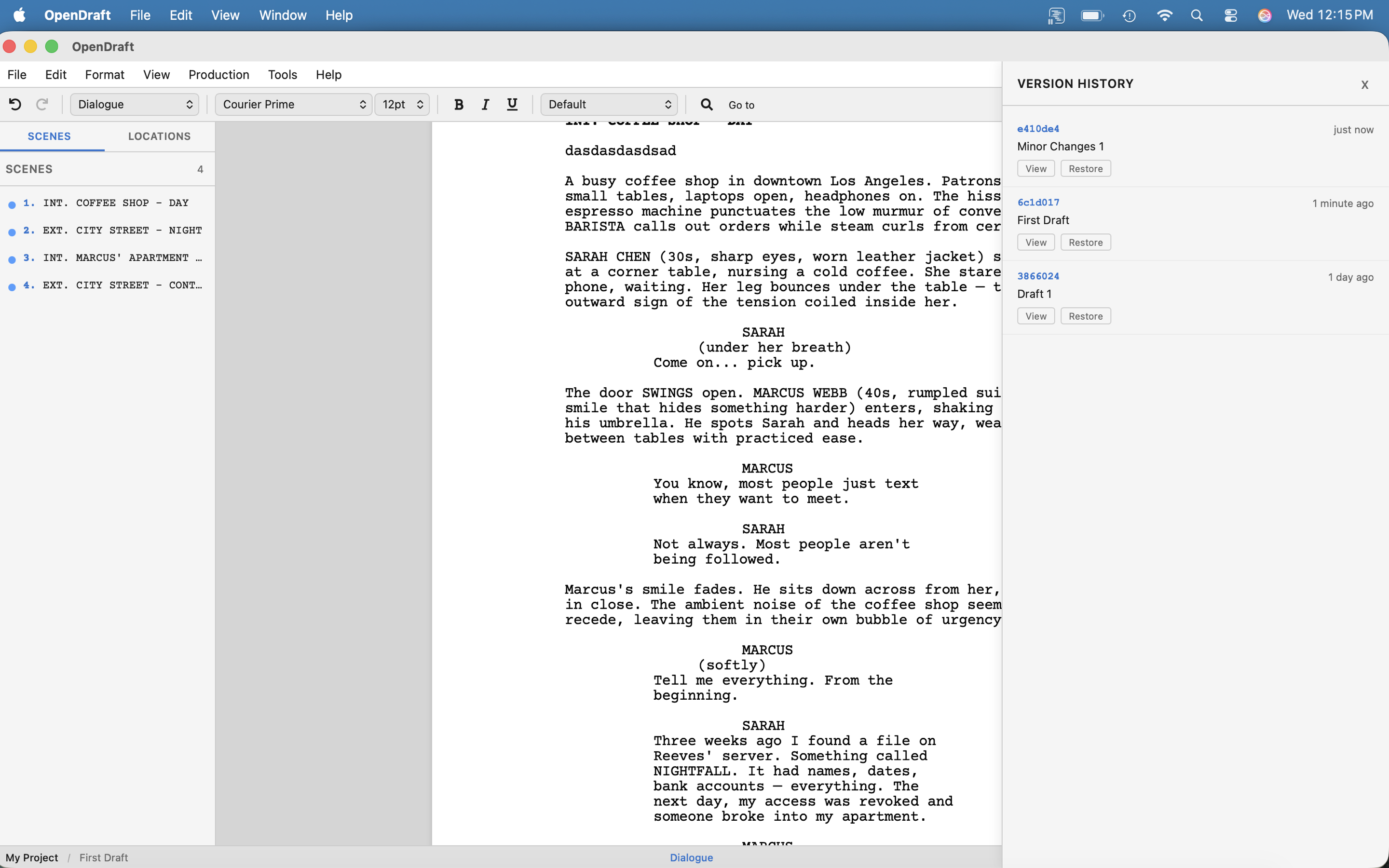
Access version history from File > Versions > Version History or from the Versions tab in the project view.
The version list shows:
- Message — The description you wrote when checking in
- Date — When the version was created (with relative time, e.g., "2 hours ago")
- Author — Who made the check-in
Viewing a Past Version
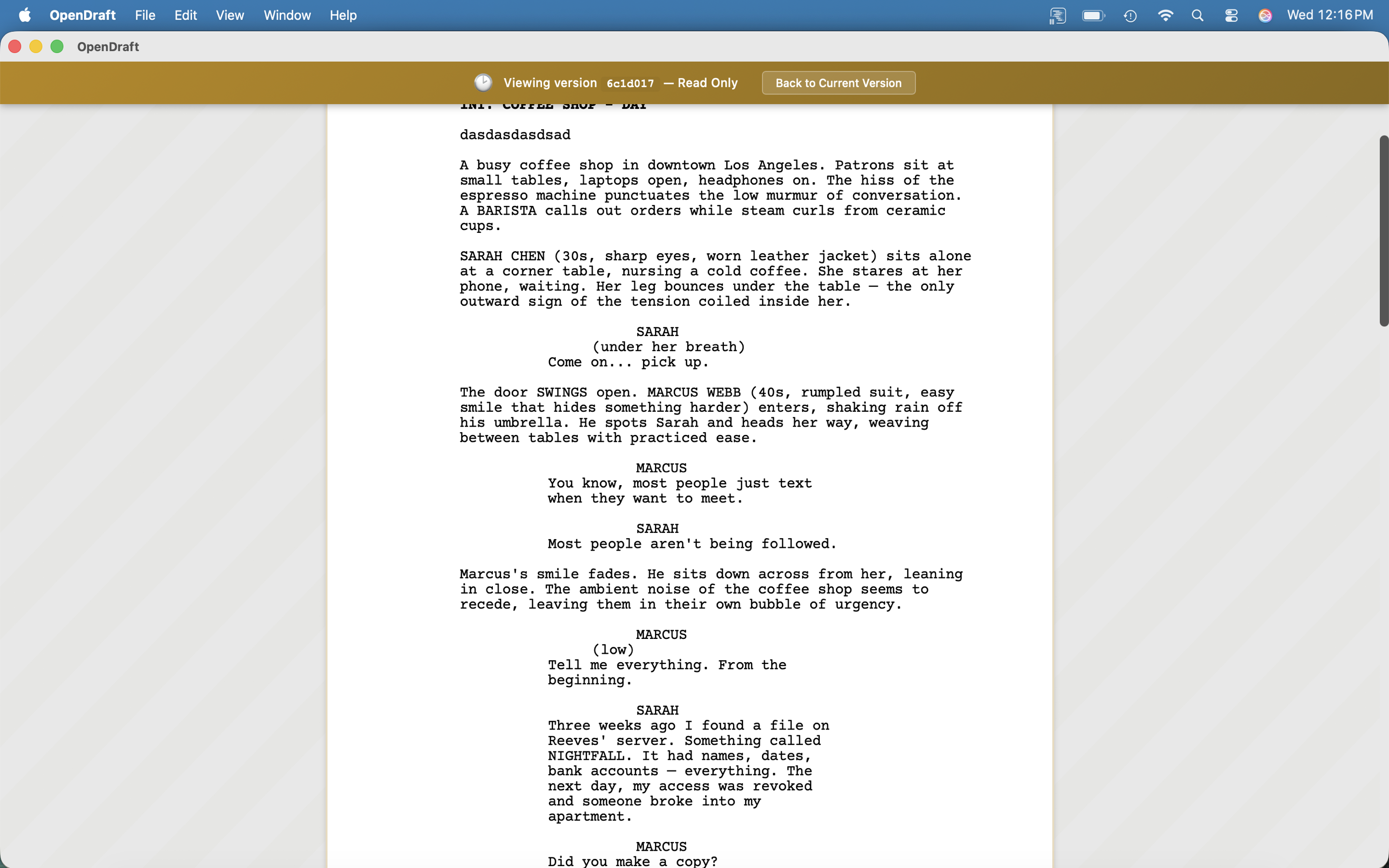
Click View on any version to open it in a read-only editor. This shows exactly what your script looked like at that point in time.
When viewing a past version, a gold banner at the top indicates you are in read-only mode, showing the version hash and a Back to Current Version button.
Comparing Versions
Compare your current script against any previous version using Track Changes:
- Go to File > Versions > Compare with Version
- Select the version to compare against
- The editor shows inline diffs — green for additions, red strikethrough for deletions
See Revision Mode & Track Changes for more details on the diff view.
Restoring a Version
If you want to go back to a previous version:
- Open Version History.
- Find the version you want to restore.
- Click Restore.
- Your script is updated to match that version. A new version is automatically created (so you can always undo the restore).
Safe to restore: Restoring a version doesn't delete any history. It creates a new version that matches the old one. You can always restore back to where you were.
Save vs. Check In
| Action | What it does | When to use |
|---|---|---|
| Save (⌘S) | Saves your current work to disk | Frequently, as you write |
| Check In | Creates a named version snapshot you can view, compare, and restore | At milestones (finished scene, end of session, before major changes) |
Backups
Version History lives inside OpenDraft’s database. Backups are ordinary files outside it, written on a timer into a folder you choose, so they survive even if something happens to the app’s data. Use both: check in at milestones, and let backups run quietly in the background.
Backups work on the desktop and on iPad, iPhone and Android. See Backups & Recovery for choosing a folder, what gets written, Back Up Now, and restoring a copy.